B2Bpay with MYOB integration: frequently asked questions
Connect MYOB AccountRight to B2Bpay to pay your approved MYOB bills by card from one screen, add a Pay Now button to your MYOB invoices, and have every payment, fee and customer receipt recorded in MYOB automatically.
Why connect B2Bpay to MYOB?
Short answer: Connecting MYOB saves time and data entry. Your approved MYOB bills appear in B2Bpay ready to pay by card, a "Pay Now" button on your MYOB invoices takes customers to your B2Bpay payment page, and every payment, both what you pay and what you receive, is recorded in MYOB automatically.
The integration works in both directions:
- Making payments. View and pay all your approved MYOB bills in B2Bpay with the cards stored in your B2Bpay wallet. B2Bpay records the payment and the fee back in MYOB.
- Receiving payments. A "Pay Now" button on your MYOB invoice template sends customers to your B2Bpay payment page. Their payment is recorded against the invoice and reconciles in MYOB.
B2Bpay connects to MYOB AccountRight. The same approach also works with Xero and QuickBooks; see pay bills from Xero, MYOB or QuickBooks.
How to connect MYOB to pay your bills
- Log in to B2Bpay with your normal credentials.
- Open the My MYOB Bills tab and click Connect to MYOB AccountRight.

- Log in to MYOB with your MYOB details, and enter your two-factor authentication code if you have set one up.
- Select the MYOB company profile you want to connect to B2Bpay.
- Enter your MYOB User ID. This is your local MYOB user name. If you have not set one up, type
Administrator. - Enter your MYOB password. This is your local MYOB password. If you have not set up a User ID, leave this field blank. Click Next.
- Select your Payment Account: the card or account where you want B2Bpay payments recorded in MYOB.
- Select your Expense Account: where B2Bpay payment processing fees are recorded in MYOB, for example "Bank Fees". Click Save.
- You will see every approved bill synced from MYOB, ready to pay. Select the bills, choose the day you want to pay, and click $ Pay Selected.
The first time you pay a supplier, or if we cannot match them in our system, you may be asked to provide or confirm their bank details. That's it: you're connected. Each time you log in to B2Bpay, open the Pay MYOB Bills tab.
What happens in MYOB after you pay
B2Bpay processes your payment and updates MYOB automatically by:
- recording your payment of the bill;
- posting the payment processing fee to your nominated Expense Account (for example Bank Fees);
- recording the total payment amount in your nominated Payment Account.
The only thing left for you is what you already do: reconcile the payment on your credit card statement with the payment in your MYOB Payment Account.
How to connect MYOB to receive payments
Connect B2Bpay to MYOB so customers can pay you by credit card directly from your MYOB invoices, online and at any time. When a customer pays, the payment is recorded against the invoice and reconciles in MYOB automatically.
- Log in to B2Bpay as a biller at the Receiving Payments login.
- Click Profile on the left-hand side of the screen.
- Click the MYOB tab.

- Click Connect to MYOB AccountRight.
- Log in to MYOB with your details, then enter your two-factor authentication code.
- Select the MYOB company profile you want to connect to B2Bpay.
- Enter your MYOB User ID (your local MYOB user name, or
Administratorif you have not set one up) and your MYOB password (leave it blank if you have not set up a User ID). Click Next. - Select your Payment Account: the account that receives the funds your customers pay, where B2Bpay records their payments in MYOB.
- Select your Expense Account for payment processing fees, for example "Bank Fees". This only matters if you have chosen to pay the fees rather than pass them on. Click Save.
Wonderful, you're connected. Next, add a "Pay Now" button to your MYOB invoice.
How to add the "Pay Now" button to MYOB invoices
When you finish connecting, B2Bpay shows a "Congrats" screen. Open the "Pay Now" button image on that screen and save it to your computer. Then:
- Log in to MYOB and select Setup > Customise Forms.
- In the Customise Forms window, select the Invoices tab on the left, choose the invoice template you normally use and click Customise.
- Click Picture, then Add a picture. Find the "Pay Now" button you saved and click Open.
- Place the button where you want it on your invoice and resize it with your mouse.
- Select Text Box and draw a text box over the light blue section of the button.
- Type your payment page address:
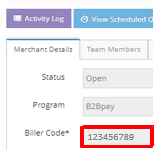
https://pay.b2bpay.com.au/MYOB/yourBillerCode, replacing yourBillerCode with your Biller Code.
To find your Biller Code, click Merchant Details on the My Profile tab in B2Bpay.
That's it. Your customers will be taken to your payment page. When a customer pays, MYOB marks the invoice as paid, or shows the remaining balance if they pay part of it. See accept card payments for pricing and the Bonus Biller program.
Frequently asked questions
Why should I integrate my B2Bpay account with MYOB?
Three reasons: you can view and pay all your MYOB bills in B2Bpay; the "Pay Now" button on your MYOB invoice template takes customers to your B2Bpay payment page; and all payments, both payables and receivables, are recorded in MYOB automatically, saving time and data entry.
What if I don't have a MYOB account?
If you do not have accounting software, ask your accountant or bookkeeper which program they recommend for your business. Signing up to MYOB is easy: visit MYOB's website to start a free trial. B2Bpay also integrates with Xero and QuickBooks.
How many points do I get for making and receiving business payments?
Making payments: you earn your card's full reward points plus B2B Points on the Earn plans: 1 per $1 on Earn Max and 1 per $2 on Earn Plus. B2B Points convert 1:1 to Qantas Points.* Receiving payments: you earn 1 Qantas Point for every $20 paid to you by Visa or Mastercard.** Customers paying a Bonus Biller can earn up to 3 Qantas Points for every $1.50, depending on the agreement between the biller and B2Bpay. See B2B Points.
What if I'm not a Qantas Business Rewards member?
Your business can only earn Qantas Points as a Qantas Business Rewards member. The join fee is waived when you join through B2Bpay's link; see earn Qantas Points.
How do I connect my B2Bpay account to MYOB to pay bills?
Log in to B2Bpay, open the My MYOB Bills tab and click Connect to MYOB AccountRight. Log in to MYOB (with two-factor authentication if set up), pick your company profile, and enter your local MYOB User ID and password (use "Administrator" and a blank password if you have not set up a User ID). Choose a Payment Account and an Expense Account, then click Save. Full steps are above.
I'm connected. Now what?
Each time you log in to B2Bpay, click the Pay MYOB Bills tab. All the bills you have loaded into MYOB are there, ready to pay with the credit cards stored in your B2Bpay wallet. If we do not have enough details to process a payment, such as the supplier's BSB and account number, you will be prompted to enter them.
What happens once I have made a payment?
B2Bpay processes your payment and automatically updates MYOB by recording your payment of the bill, posting the payment processing fee to your nominated Expense Account (for example Bank Fees), and recording the total payment amount in your nominated Payment Account.
Do I need to do anything in MYOB after I have made payments in B2Bpay?
Just what you already do: reconcile the payment that appears on your credit card statement with the payment in your MYOB Payment Account.
How do I connect my B2Bpay account to MYOB to receive payments?
Log in to B2Bpay as a biller, click Profile, open the MYOB tab and click Connect to MYOB AccountRight. Log in to MYOB, enter your two-factor code, choose your company profile and enter your local MYOB User ID and password. Choose the Payment Account that receives your customers' funds and an Expense Account for any fees you absorb, then click Save. Full steps are above.
How do I add the "Pay Now" button to my MYOB invoices?
Save the "Pay Now" button from the Congrats screen. In MYOB, go to Setup > Customise Forms, choose your invoice template on the Invoices tab and click Customise. Add the button with Picture > Add a picture, draw a text box over its light blue section and type https://pay.b2bpay.com.au/MYOB/ followed by your Biller Code, which is under Merchant Details on the My Profile tab. Full steps are above.
I already have payment options on my MYOB invoices. Can I add B2Bpay?
Yes. MYOB invoices can show more than one way to pay, so simply add B2Bpay as another option. The benefit of customers paying through B2Bpay is that it can cost you nothing, and you and your customers earn Qantas Points.
What happens when a customer pays my invoice?
When a customer pays through the B2Bpay button on your invoice, the invoice is updated as paid in MYOB. If the customer does not pay the full amount, the invoice changes to show the remaining balance.
* Making payments: B2B Points are earned on the Earn Plus and Earn Max plans. Qantas Points are earned by converting B2B Points, which needs a Qantas Business Rewards account for your ABN. ** Receiving payments: 1 Qantas Point for every $20 paid to you by Visa or Mastercard through your B2Bpay payment page, under the B2Bpay Customer Terms and Conditions and the Qantas Business Rewards Terms and Conditions. Bonus Biller rates depend on the agreement between the biller and B2Bpay.
Start earning on the bills you already pay
Set up takes minutes. Pay your BAS, suppliers and rent by card and keep the cash for up to 55 days.